This page will guide you on how you can configure tabs offered by BuddyPress Profile Likes. This section offers settings like enable/disable like tab, setting tab availability and visibility based on WordPress roles etc.
Settings:-
-
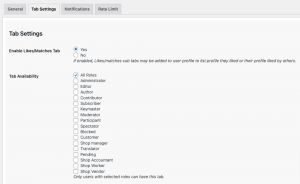
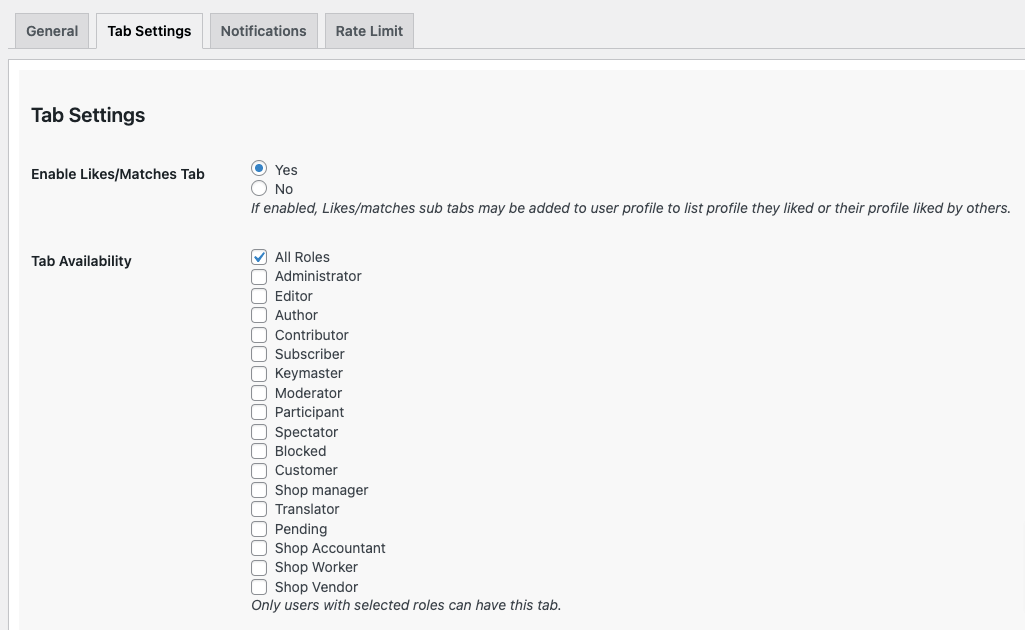
- Enable and Tab Availability Settings
-
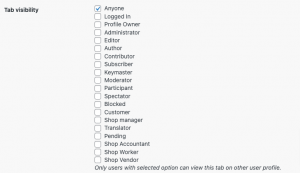
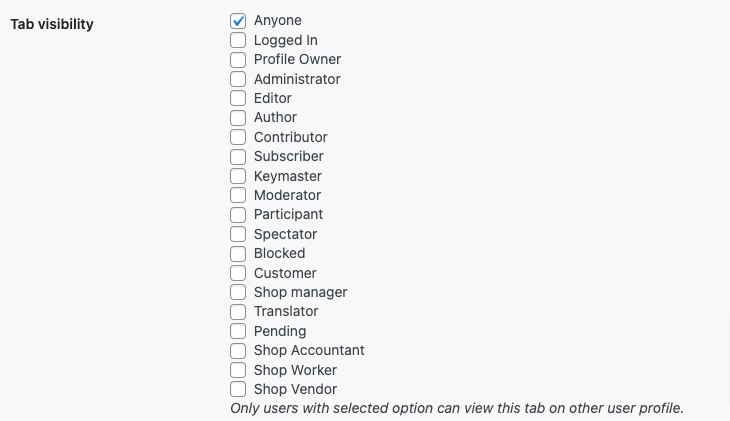
- Tab Visibility Settings
-
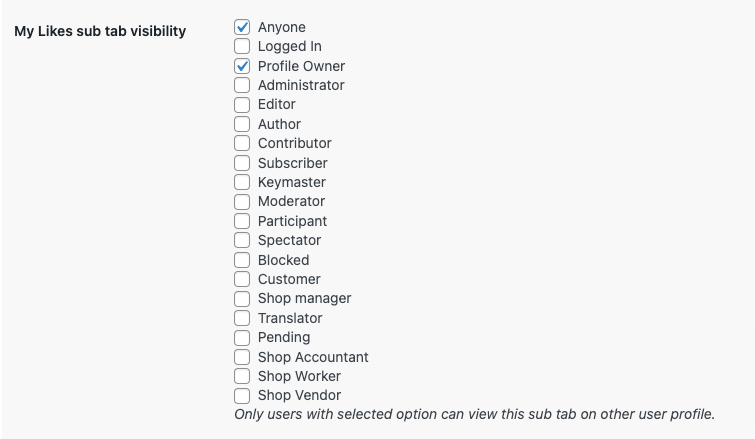
- Sub Tab My Likes Settings
-
- Sub Tab Received Likes Settings
-
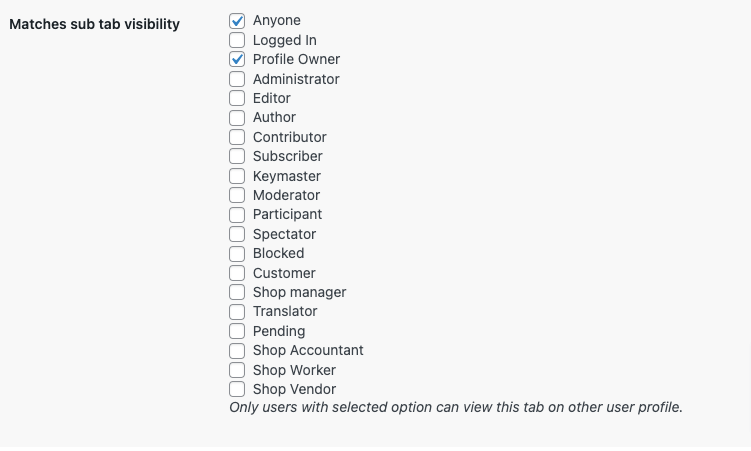
- Sub Tab Matches Settings
-
- Tab Counts Settings
- Enable Likes/Matches Tab:- Site admin can enable/disable the Likes/Matches tab on the user profile using this setting.
- Tab Availability:- Site admin can select among roles and the users from these roles have the Likes/Matches tab on their profile.
- Tab Visibility:- Site admin can select among roles and the users from these roles can see the Likes/Matches tab on other user profiles.
- My Likes:- Site admin can select among roles and the users from these roles can see the My Likes sub-tab on their own or other user profiles.
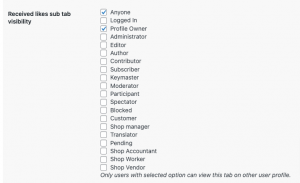
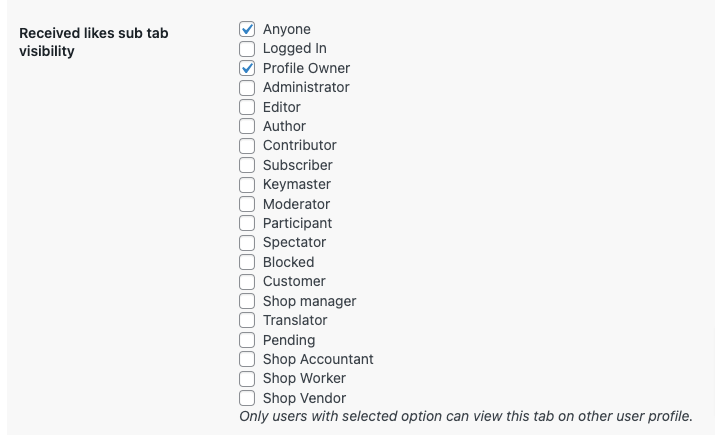
- Received Likes:- Site admin can select among roles and the users from these roles can see the Received Likes sub-tab on their own or other user profiles.
- Matches:- Site admin can select among roles and the users from these roles can see the Matches sub-tab on their own or other user profiles.
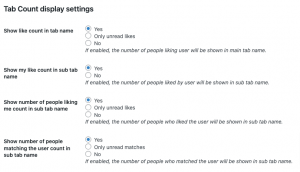
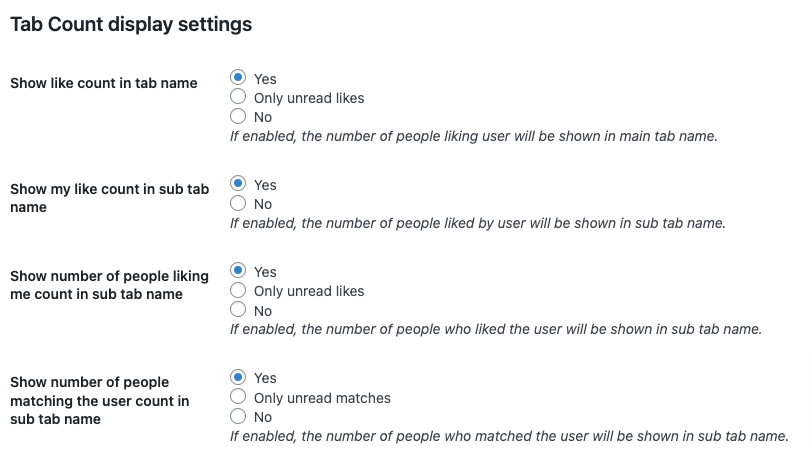
- Tab Count Display Settings:-
- Show Like Count In Tab Name:- Site admin can select whether he/she wants to show like count with the tab. Options are Yes, Only unread likes, and No.
- Show My Likes Count In SubTab:- If enabled, The number of people liked by the user will be shown in the sub-tab name. Options are Yes and No.
- Show Number Of People Liking Me Count In Sub Tab Name:-If enabled, The number of people who liked the user will be shown in the sub-tab name. Options are Yes, Only unread likes, and No.
- Show Number Of People Matching The User Count In Sub Tab Name:- If enabled, the number of people who matched the user will be shown in the sub-tab name. Options are Yes, Only unread likes, and No.