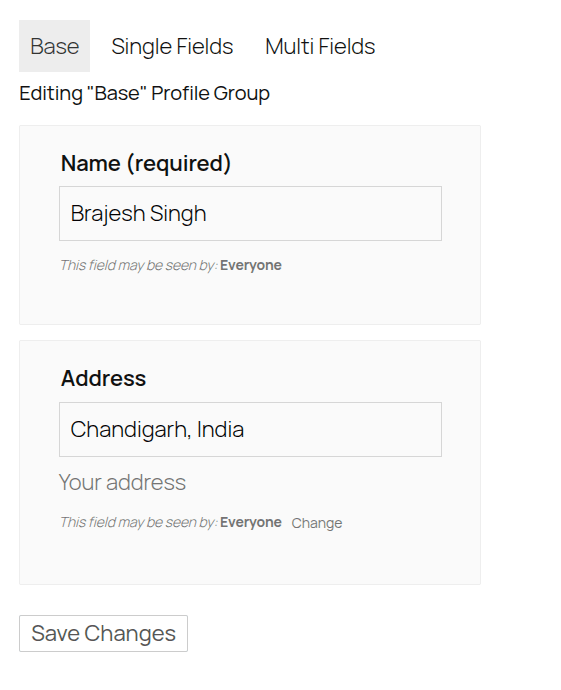
Empower your BuddyPress & BuddyBoss community with accurate, verified location data using a single, streamlined profile field.
We are excited to announce that BP xProfile Location has officially joined the BuddyDev family. Originally developed by Shane at PhiloPress, this essential tool is being transitioned to BuddyDev to ensure it remains updated and supported for the entire BuddyPress and BuddyBoss community.
Why Use BP xProfile Location?
Standard profile setups often require separate fields for City, State, and Postal Code, leading to long, tedious registration forms. Worse, manual entries often result in typos (e.g., "Los Angeles" vs. "LA"), making your member data difficult to search
BP xProfile Location solves this by:
- Simplifying Forms: Replace multiple address fields with a single "Location" field
- Ensuring Accuracy: Powered by Google Autocomplete, users select from verified addresses as they type
- Standardizing Data: Locations are saved as uniform, searchable strings including postal codes where available
- Enabling Radial Search: By saving the GeoCode (latitude and longitude), you can enable "Near By" and distance-based searches for your members.
Key features:-
- Google Places Integration: Leverages the Google Places API for real-time address suggestions.
- Automatic Geocoding: Optionally save GeoCode data every time a location is selected, perfect for high-speed map loading and radial searches.
- Search Compatibility: Fully supports distance-based searches via BP Profile Search (v5.0+) and the BuddyBoss Platform Profile Search.
- Seamless Registration: Include location fields directly on your registration form or within extended profiles.
How to Configure
1. Configure Google Mapi APi Key:-
- BuddyPress: Go to Settings > BuddyPress > Options and enter your Google Maps API key(It is under Extended profile section).
- BuddyBoss: Go to BuddyBoss > Integrations > PhiloPress to enter your key.
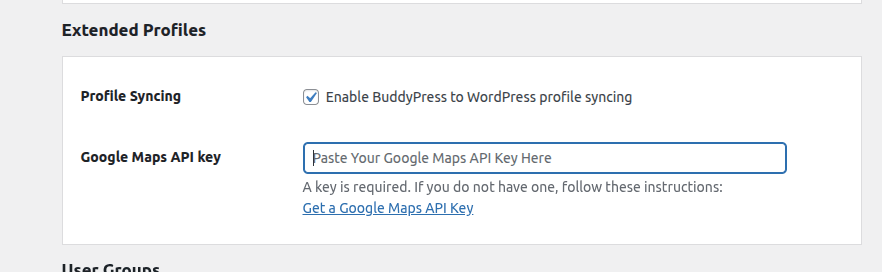
Note: A valid Google Maps API key is required for the autocomplete and geocoding features to function. Here is a guide on how to get your google map api key.
2. Add a BuddyPress/BuddyBoss profile field with Location Type
For BuddyPress:-
- Users > Profile Fields > Add New
- Select "Location" from Single fields
- Save options as appropriate(we suggest enabling geocoding).
here is a screenshot.
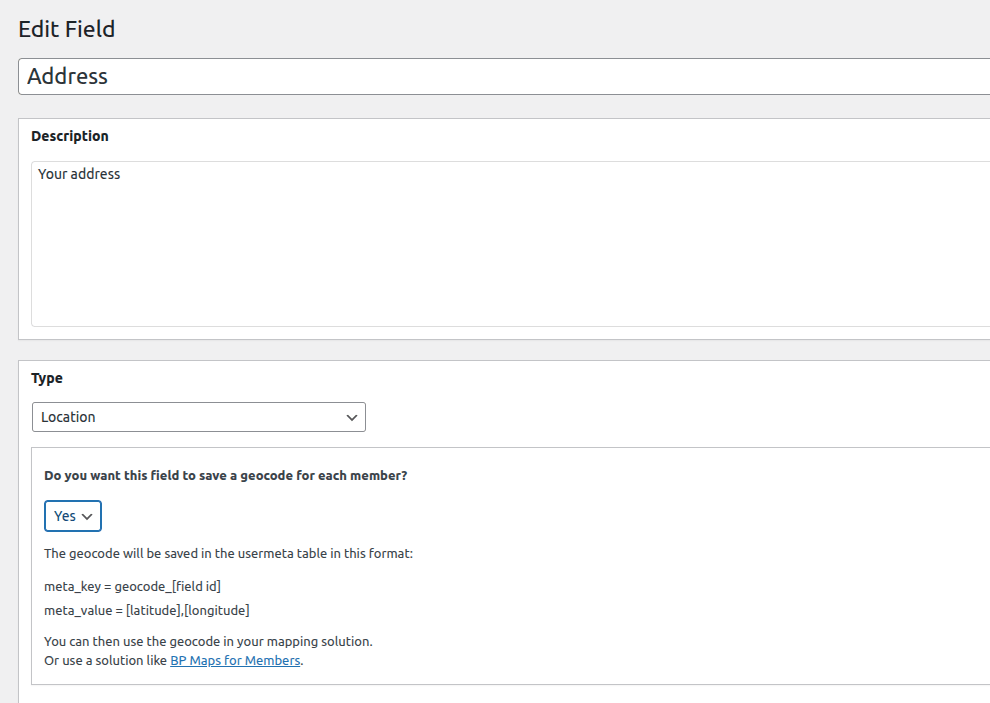
For BuddyPress, Please visit BuddyBoss > Profiles -> Add New Field and select "Location" just like BuddyPress.
Here is a screenshot showing it on front end.
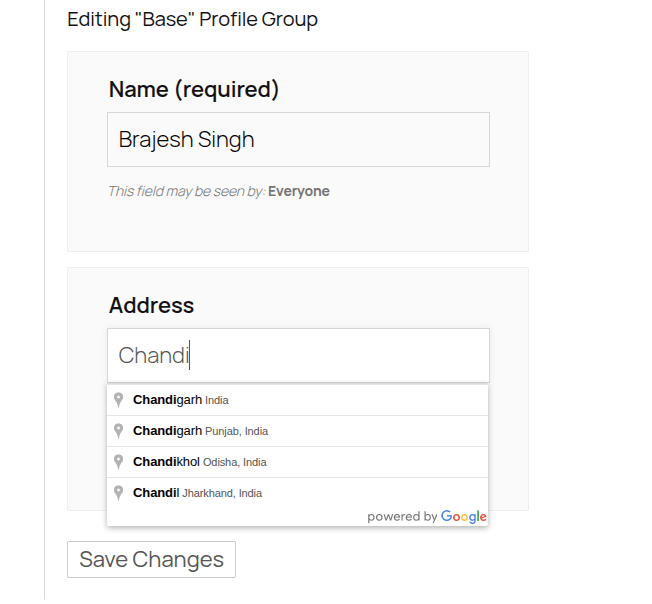
and after saving