In this post, you are going to learn about:-
We assume that you have already enabled the Post Type creator in BuddyBlog Pro’s tools section.
Creating Post Type:-
- Click on the “Post Types” in the BuddyBlog Pro menu
- On the list screen, Click on “Add New Post Type” button as shown below
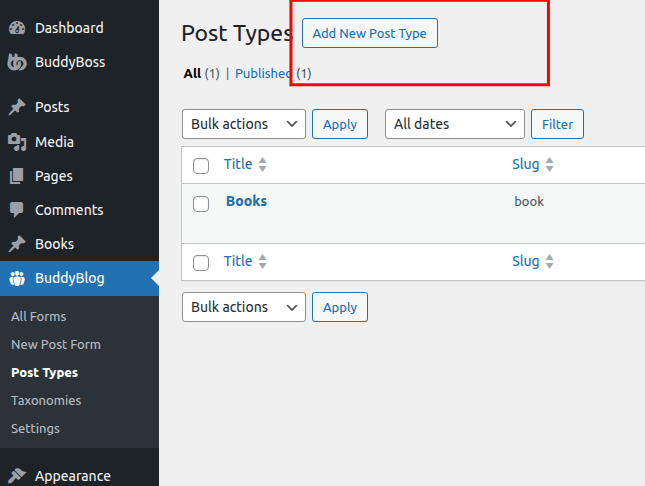
That will take you to the new post type creation screen.
Post Type Creation/Edit screen options:-
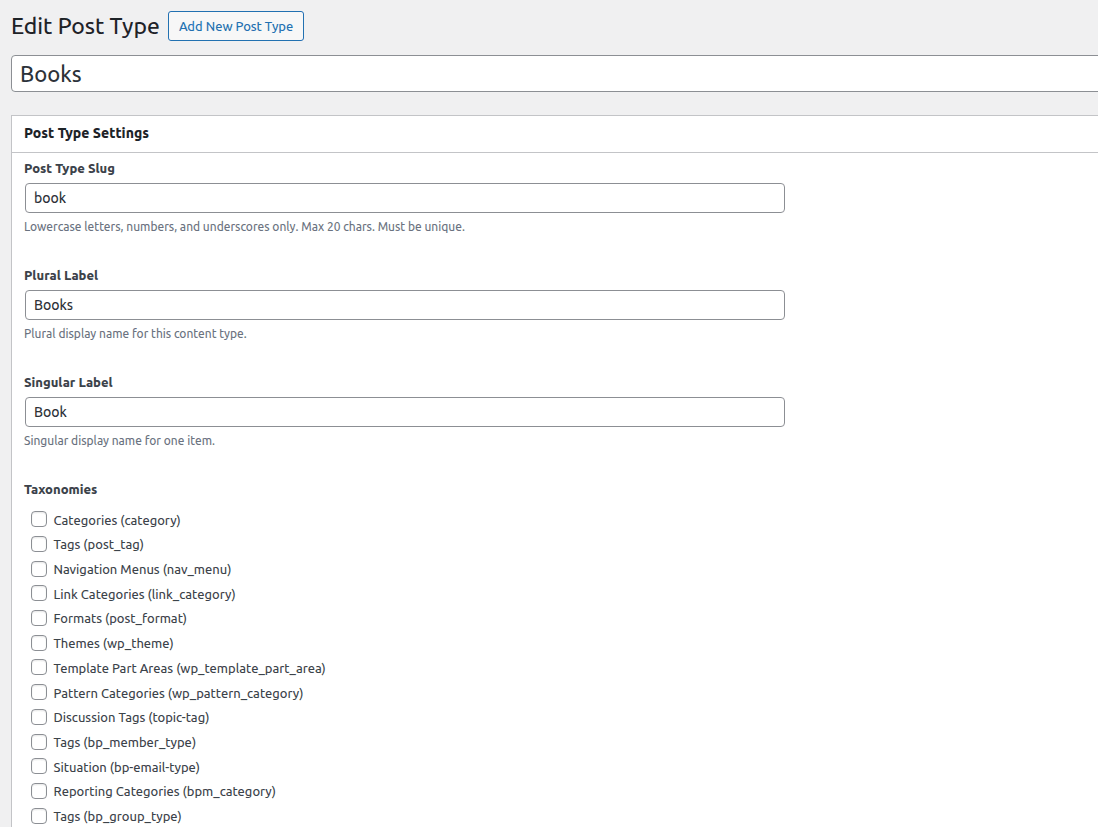
You will see the basic options(Advance settings are hidden by default) like below
Basic settings:-
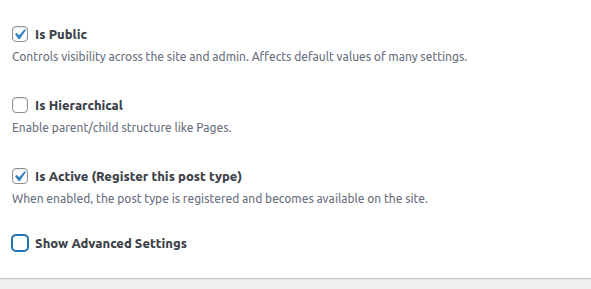
Basic settings part 2:-
- Title – It is for your convenience(to remember what the post type is, it is not used for registering post type)
- Post type slug:- It is the unique post type identifier, must be lower case, less than 20 characters and without any space.
- Plural label:- The plural name for post type e.g. Movies or Books
- Singular Label:- The singular name for the post type e.g. Movie, Book etc.
- Taxonomies:- Associate one or more taxonomies with this post type.
- Is Public:- Make this post type public. It will be visible from front end to everyone
- Is Hierarchical:- Will the content be hierarchical like page?
- Is Active:- Toggle to enable/disable the registration for this post type. You need to keep it on to use this post type.
- Show Advance Settings:- Toggle to enable advance settings. If you tick it, you will see a tabbed interface with advance settings as below
Advance Settings:- General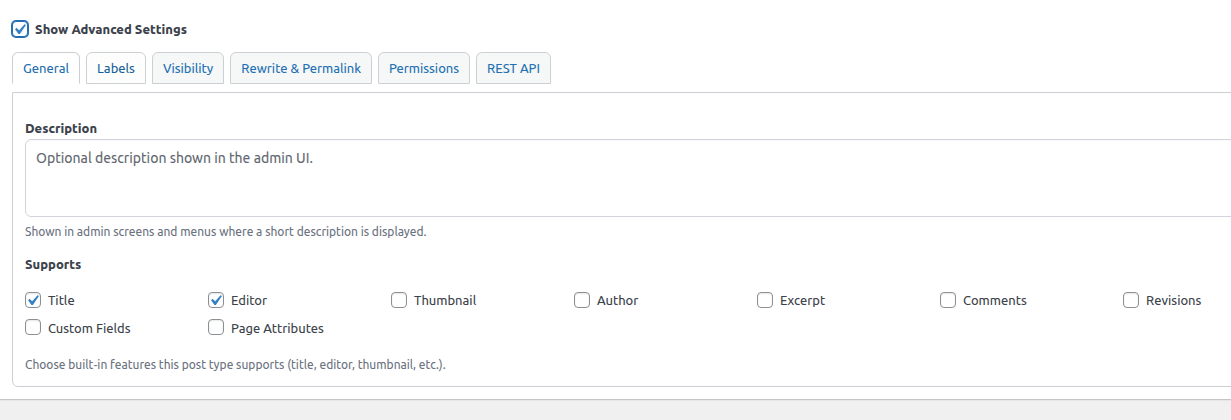
- The “General” tab allows you to define the optional description. You can also enable/disable the supported features here.
Advance Settings:- Labels
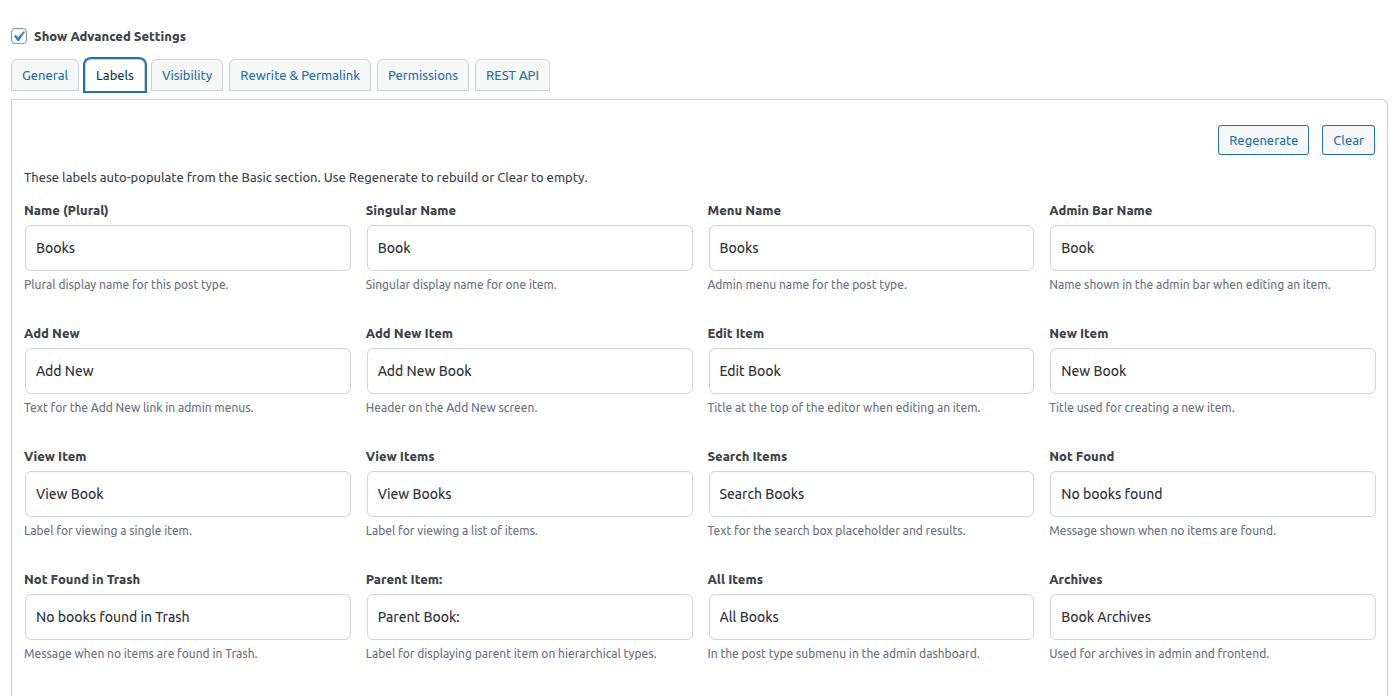
- Allow bulk editing all labels for post type.
- On a new Post Type screen, if you change the Singular/Plural Label, the bulk options will be automatically updated.
- On edit Post Type screen if you changed the singular or plural label, you can use “Regenerate” button to regenerate the labels from current Singular/Plural label.
- The “Clear” button allows you to clearing all the label fields.
- You can use this screen to update the bulk labels as you please(you can update entries manually if you need to do that).
Advance Settings:- Visibility
It allows you to control the various visibility options
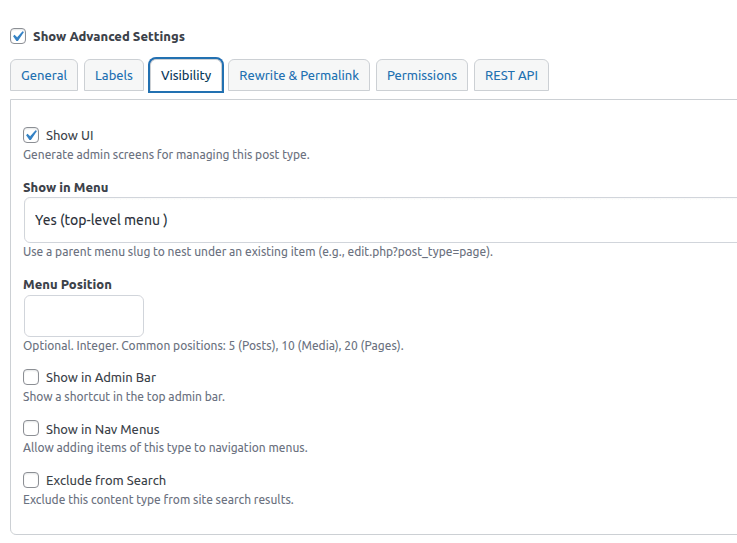
- Show UI:- Do you want to enable the Post Type’s UI in admin to creating/managing content(generally, you should enable it).
- Show In Menu:- By default it is shown as top level admin menu. You can move it as sub menu by using custom option and specifying the slug of parent menu item.
- Menu Position:- Allows you to control the location where this post type’s menu appears in admin(smaller integer means higher priority).
- Show In Admin Bar:- Do you want to see the Post types under the “New” dropdown menu in admin bar?
- Show in Nav Menus:- Do you want the post type entries to appear in nav menus for selection?
- Exclude from search:- Hides the post type from search.
Advance Settings:- Rewrite & Permalink
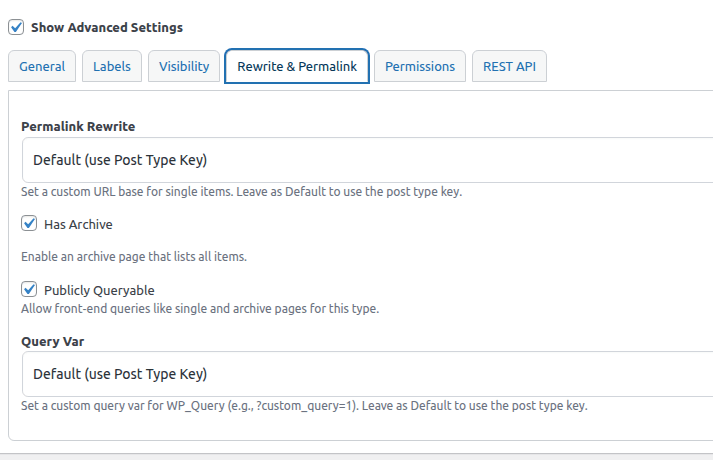
- Permalink Rewrite:- You can opt to use the post type slug as base in post permalink(e.g http://example.com/event/some-slug) or you can specify a custom slug or you can disable permalink.
- Has Archive:- Will this post type have an archive page on front end?
- Publicly Queryable:- Will this post type be queryable from front end(accessible to everyone).
- Query Var:- If you are not a developer, ignore it. It is used in custom queries.
Advance Settings:- Permissions
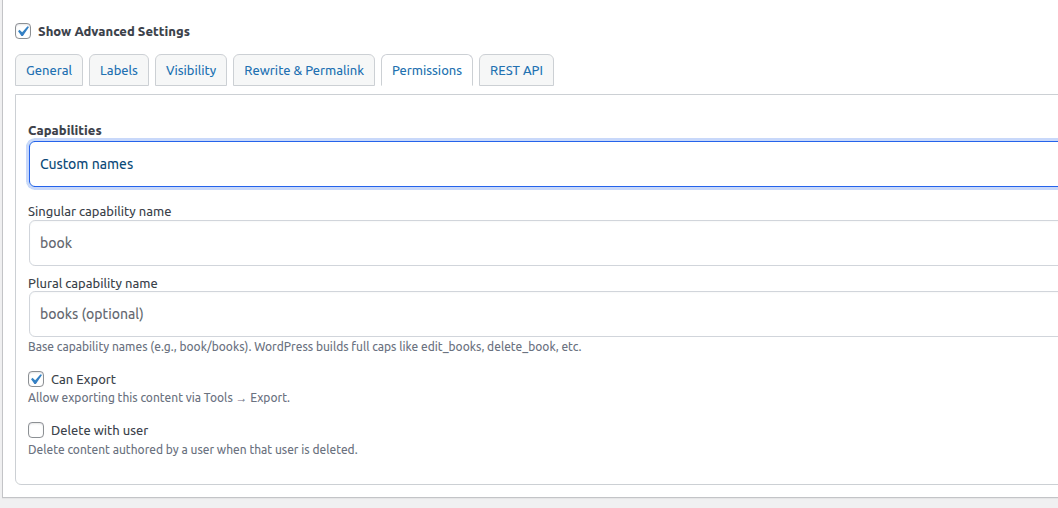
- You can set custom capabilities name. It will help create custom capability(e.g edit_books). It is not recommended unless you know what you are doing. Use the default which maps cap to ‘post’
- Can Export:- is this post type exportable from tools.
- Delete with user:- Should the user content form this post type be deleted when a user is deleted
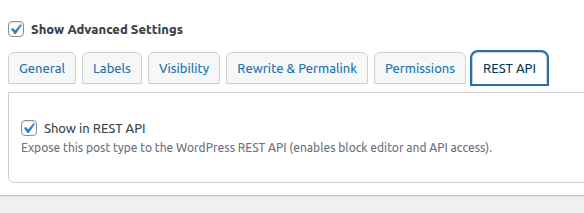
Advance Settings:- REST API
Whether to enable in REST API or not.
Managing Post Types:-
- Click on the “Post Type” in the BuddyBlog Pro menu
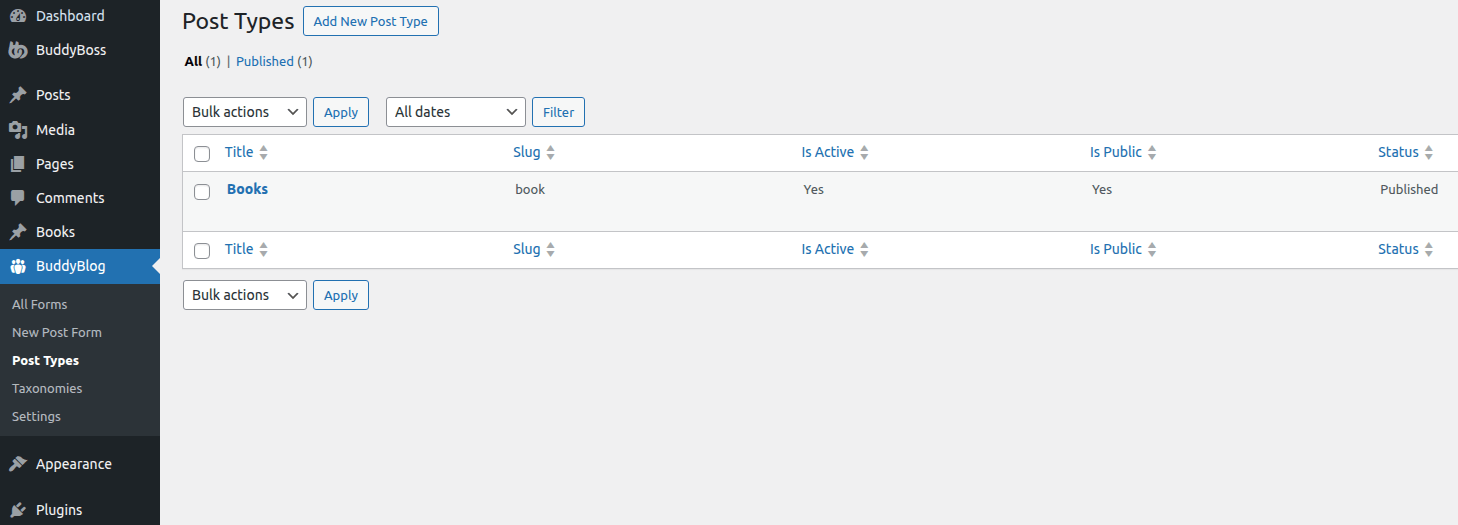
- You will see a screen that will list all the post types that you have created, and will allow to edit them as well as create new post types.
You can
- Sort the post types by title, slug(actual post type identifier), activate state(enabled or not) and if it is private or public and by status(publish/draft etc)
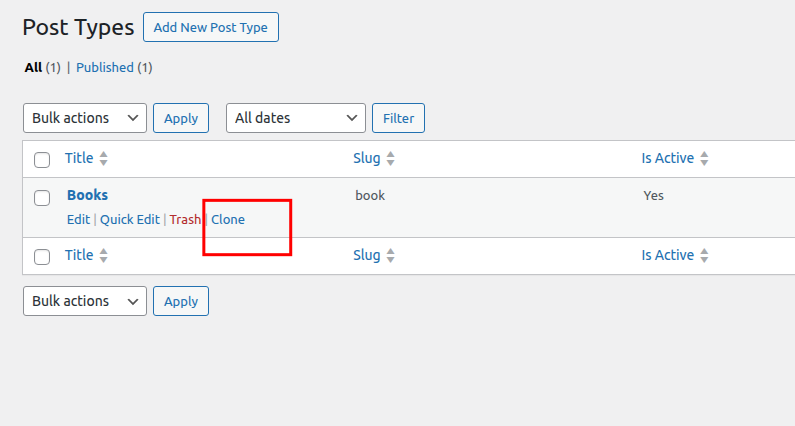
- You can also clone a post type’s configuration to create another post type by hovering over the row actions as shown below
* Only a post type which is set as “Active” and is published, will be registered.