All the settings related to user reporting can be accessed from the User panel on the settings screen.
General settings:-
The general settings section control the user hiding preference and restrictions applied to the hidden account.
Hiding Preference:-
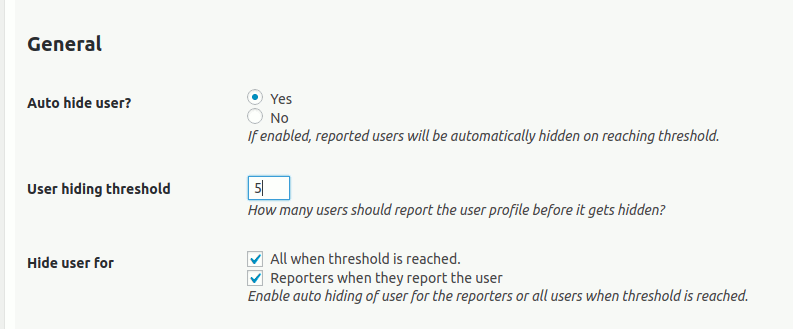
The above three options allows you to control user hiding preference, whether they should be hidden for reporter and should we have a threshold for auto hiding for everyone.
Hidden Account restrictions:-
Once the no. of times an account is reported crosses the threshold, the account is automatically marked as hidden for everyone.
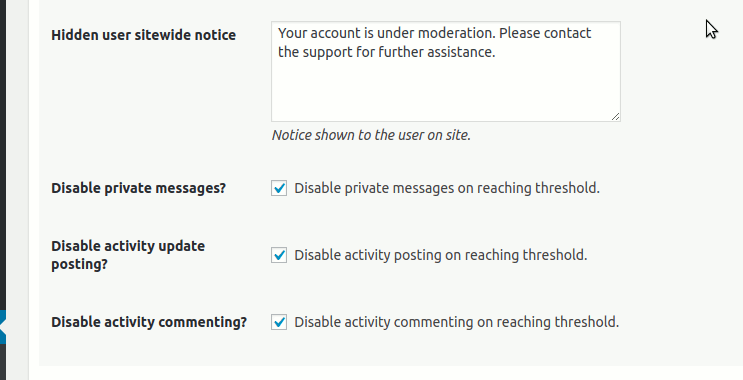
A hidden account can be subjected to the following restrictions(Explained in 3 screenshots below):-
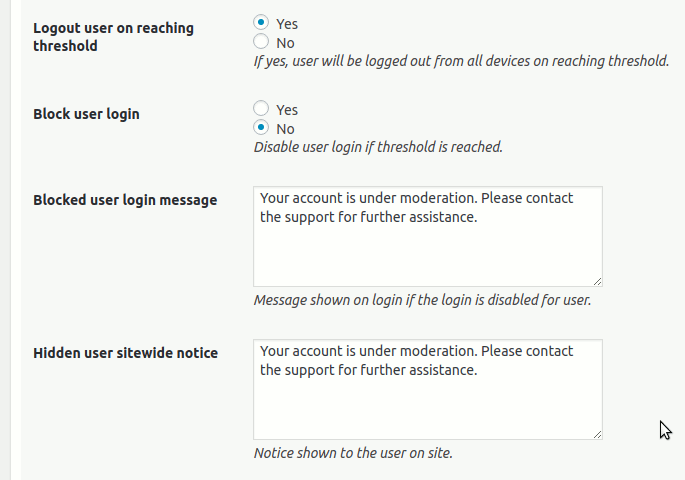
- You can automatically log out the reported user from all devices.
- You can optionally disable user login(block user login)
- If you decide to block login, you can customize the message shown to the user.
- You can disable private message(composing/sending) functionality for the hidden user
- You can disable activity posting for the user
- You can disable activity replying for the user
Notification settings:-
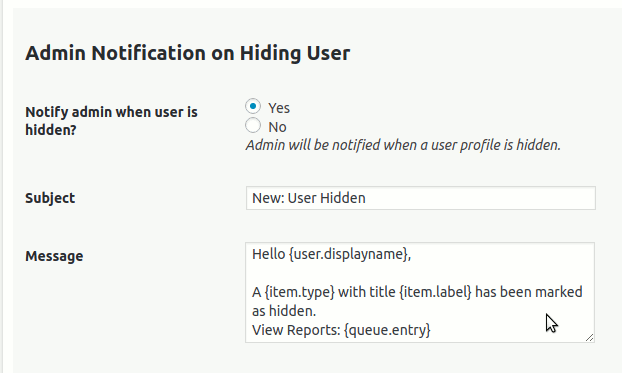
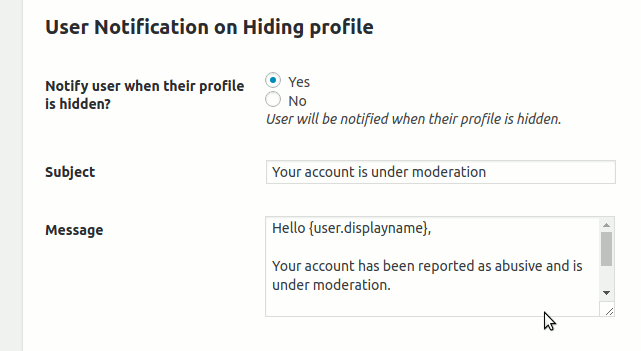
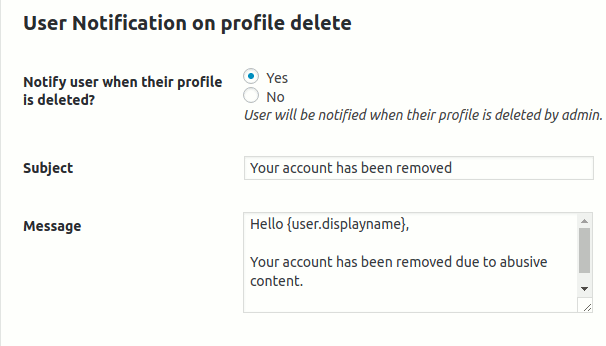
There are 5 type of notifications savailable. You can customize each of these.
- Admin notification on New user being reported
- Admin Notification on user reaching threshold and becoming hidde
- User notification on profile getting hidde
- User notification on profile restore
- User notification on profile delete.
Each of the above notification can be enabled/disabled and you can customize the subject/message for each email notification. The emails can help you manage a proper workflow.
Screennshots:-
Here are the screenshots of notifications settings.
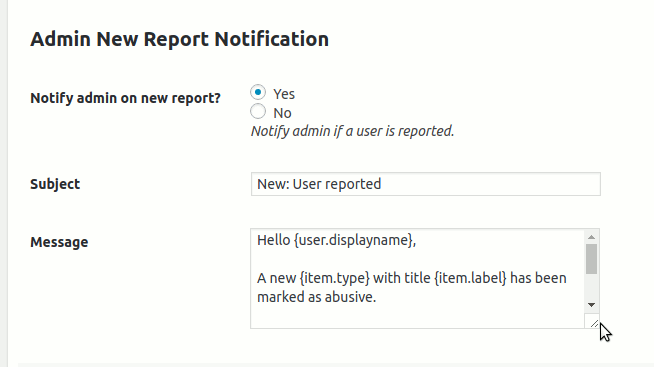

Demo for Users Moderation Settings panel for BuddyPress Moderation Tools